
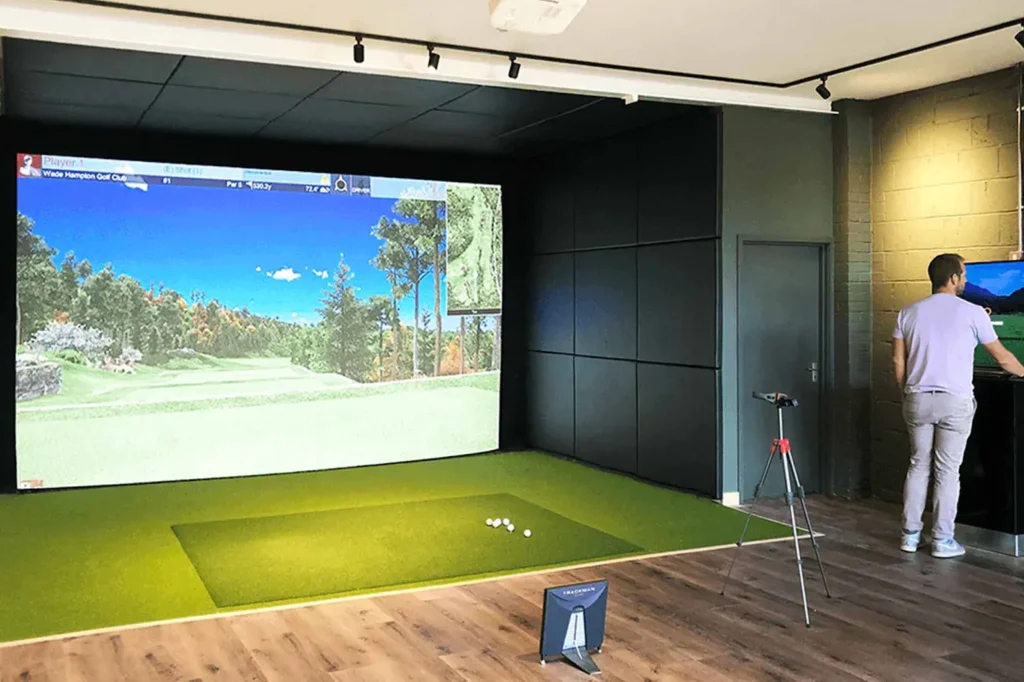

You’ve set up your home simulator, taken a few swings, and something feels off. Your distances seem inconsistent, spin numbers are erratic, and shot shapes don’t match what you’re used to on the course. It’s frustrating—especially when you’re relying on that data to improve.
If this sounds familiar, your simulator likely needs calibration. Even high-end systems can produce misleading results when not correctly aligned or configured. Fortunately, with the right approach, you can recalibrate your setup and start getting data you can trust.
Why Calibration Matters More Than You Think?
Accuracy Equals Improvement
Inconsistent readings not only create confusion but also lead to misguided adjustments. If your launch angle or club path is being misread, you’re not just wasting time—you might be ingraining bad habits. Proper calibration ensures your simulator reflects your actual swing, which is critical for meaningful progress.
Professional golfers and instructors calibrate their systems regularly for this exact reason. They know that even small inaccuracies in a golf simulator can derail focused training sessions.
External Factors Can Skew Data
Several things can impact accuracy, including poor lighting, sensor misalignment, outdated software, or even dust on the tracking lenses. Without routine checks, these variables can slowly degrade the quality of your simulator’s feedback without you noticing.
Step-by-Step Calibration: How to Do It Like a Pro
1. Level the Hitting Surface
Start by ensuring that your hitting mat or platform is level. A slight tilt can affect how the ball launches and how the system reads spin or path. Use a carpenter’s level across multiple points of the mat and make adjustments as needed.
Uneven mats can also create bounce or distortion in impact readings, especially in camera-based systems.
2. Align the Launch Monitor Properly
Each launch monitor has a specific position relative to the hitting area. Some go directly behind the ball (radar), while others are positioned in front or to the side (camera-based systems). Refer to your device’s user manual and confirm that the monitor is placed at the recommended distance, angle, and height.
Incorrect placement is one of the most common causes of misreads in a golf simulator setup.
3. Recalibrate Target Line and Ball Placement
Many simulators require the user to align a target line during initial setup. If this line has shifted—due to mat movement or room changes—it can throw off directional accuracy. Use alignment sticks or laser tools to verify that your ball is centered properly in the hitting zone and aimed at the correct screen target.
Also check that you’re placing the ball in the exact tracking zone required by your system. Some launch monitors have a designated hitting area that must be respected for accurate data capture.
System-Specific Calibration Techniques
Radar-Based Systems
For radar systems, ensure there’s enough space behind the ball and the unit is square to the target. These systems use Doppler radar to track ball flight, so a clear line of sight is critical. Avoid placing objects (like bags or chairs) behind or near the unit that could disrupt signal reception.
Regularly update firmware to maintain compatibility with the latest software calibrations and ball flight models.
Camera-Based Systems
Camera-based systems are sensitive to lighting and reflection. Use diffuse, indirect lighting to minimize shadows and glare. Clean all lenses or sensors regularly to prevent smudges or dirt from impacting readings.
Some models include built-in camera calibration tools. Take time to complete this process anytime you notice inconsistent readings or after moving your setup.
Fine-Tuning for Consistent Results
Adjust for Environmental Variables
Temperature, humidity, and altitude can all affect ball flight. Many simulators allow you to input environmental data manually—take advantage of that feature to create more realistic simulations.
For example, if you’re practicing in a cold garage during winter, your carry distances will differ from summer conditions. Calibrating your simulator for environment-specific accuracy will help you better apply practice to real-life play.
Revisit Club Data Settings
Some simulators allow you to create club profiles that include loft, lie, and shaft type. Incorrect club data can cause discrepancies in calculated distances or spin rates. Make sure your virtual bag reflects your actual equipment specs for better shot analysis.
Signs It’s Time to Recalibrate
Your Dispersion Patterns Are Off
If your grouping looks unusually tight or erratic, especially with clubs that are typically reliable, it may be time to recalibrate. While player inconsistency is always a factor, recurring anomalies often signal a system error.
Shot Shape Doesn’t Match Feel
When you hit a solid draw and the system shows a fade—or vice versa—it’s a strong indicator that the directional or spin readings are off. This usually relates to misalignment or sensor confusion.
Sudden Drops in Distance
Unless you’ve dramatically changed your swing, sudden drops in carry distance suggest an issue with launch or ball speed readings. Check that nothing is obstructing the sensors and that you’re hitting from the correct spot.
Expert Tips for Long-Term Accuracy
1. Create a Calibration Routine
Set aside time every few weeks to perform a quick calibration check. This should include monitor alignment, surface leveling, ball placement, and lighting adjustments. Regular checks prevent small issues from growing into major performance disruptions.
2. Use Known Benchmarks
Hit a few shots with your most consistent club (e.g., 7-iron) and compare the simulator data to your known averages. If the numbers are way off, you’ll know it’s time to troubleshoot.
3. Keep Your Firmware Updated
Manufacturers release updates to improve accuracy and compatibility. Check for updates regularly and install them to ensure you’re using the most stable and accurate version of the software.
Conclusion
Accurate feedback is the cornerstone of improvement in any training environment. If your golf simulator isn’t delivering reliable data, it’s not just frustrating—it can actually hold back your progress. By learning how to properly calibrate your system and maintain it like a pro, you’ll ensure that every swing counts and every session brings you one step closer to your goals.